How to Export and Import Data between iPhone and Mac
You can transfer split data and generated text between the iPhone and Mac versions of Cut&Loop using the Export/Import feature.
Please note that audio files themselves are not included in this process — you’ll need to manually copy them to your Mac.
Note: Screenshots are from a development build and may differ slightly from the released version.
On iPhone
-
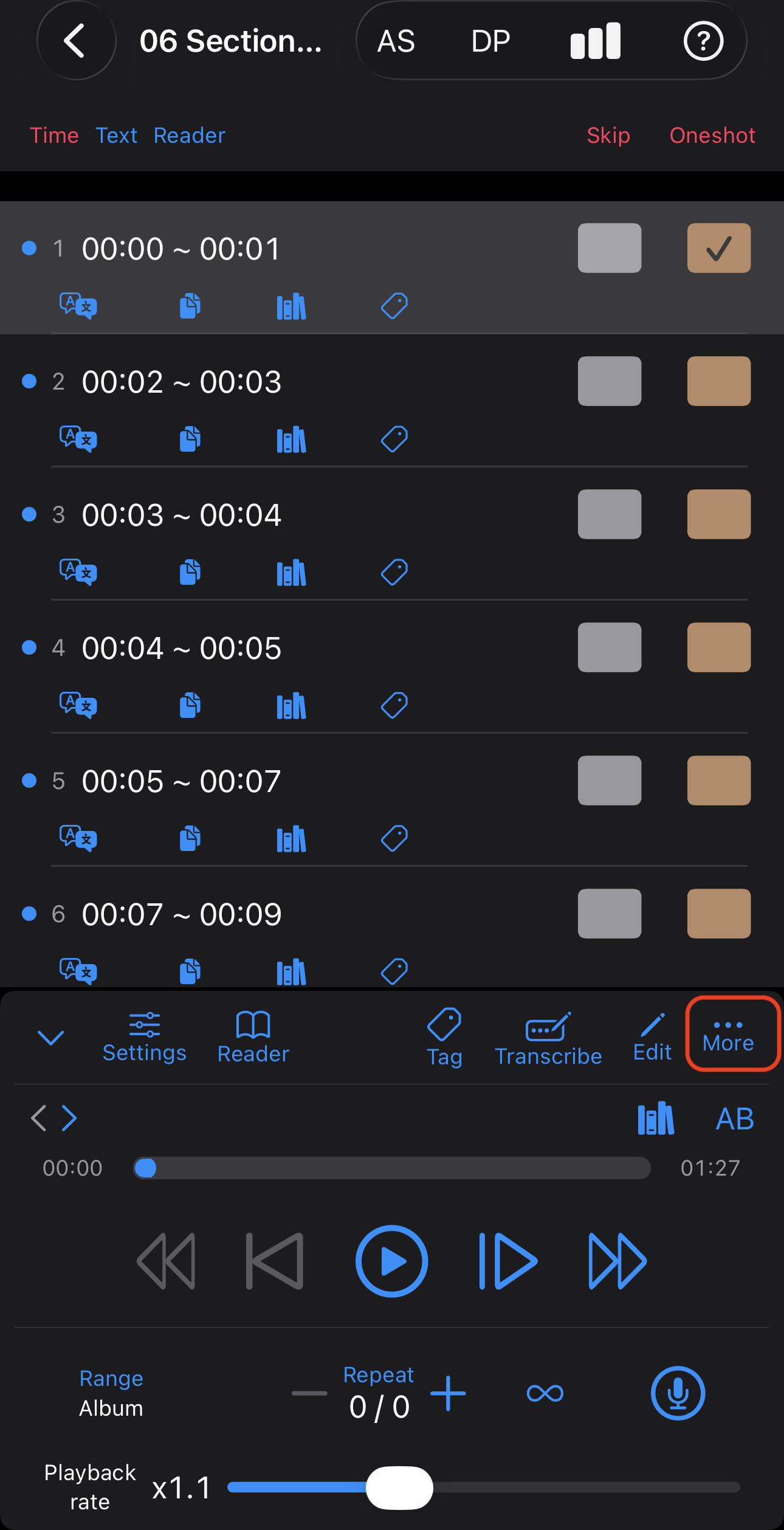
Open the playback screen of the file you want to export.
-
Tap [More].
-
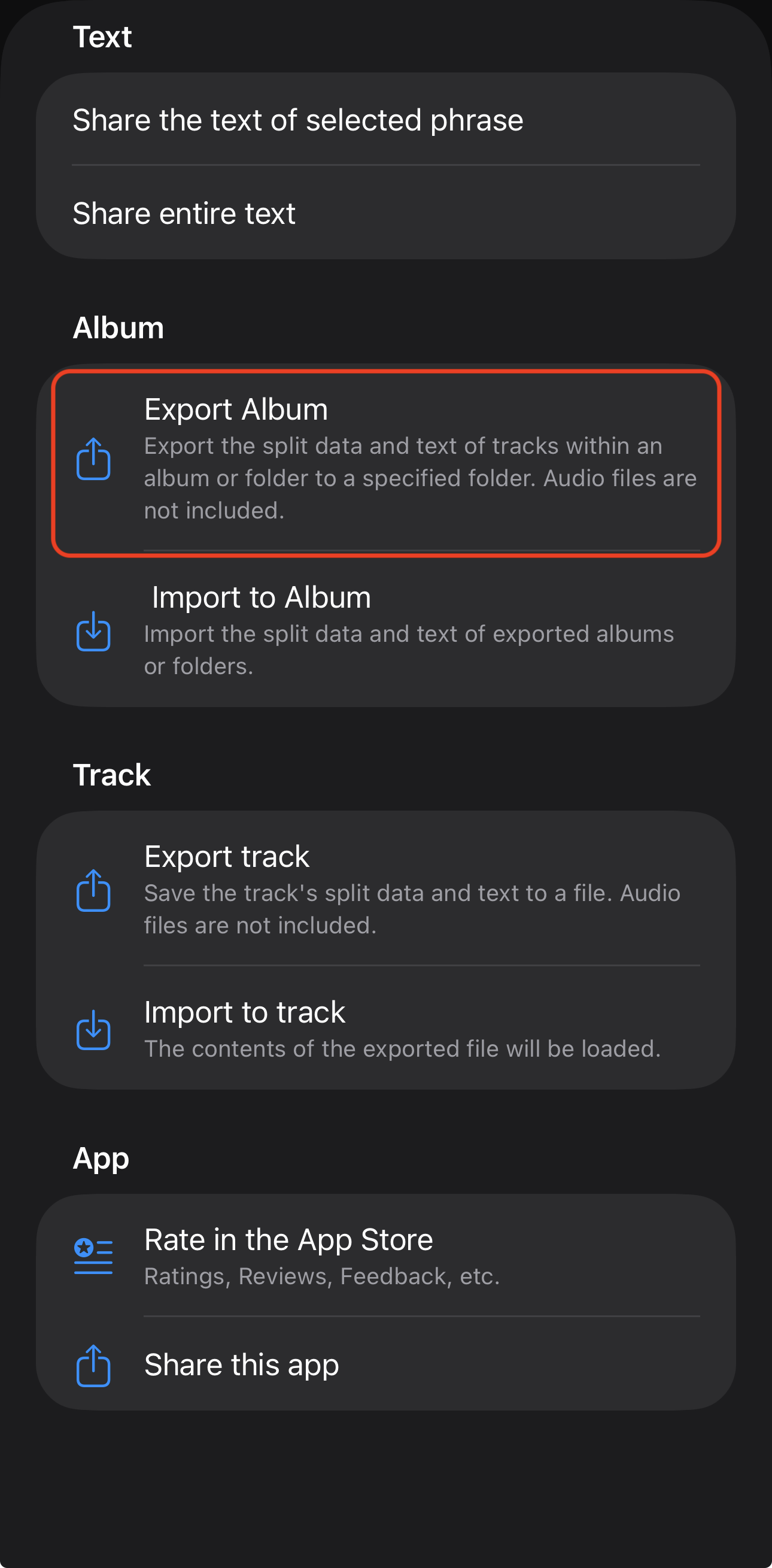
Select [Export Album] (for a folder) or [Export Track] (for a single file).
-
Choose the destination folder.
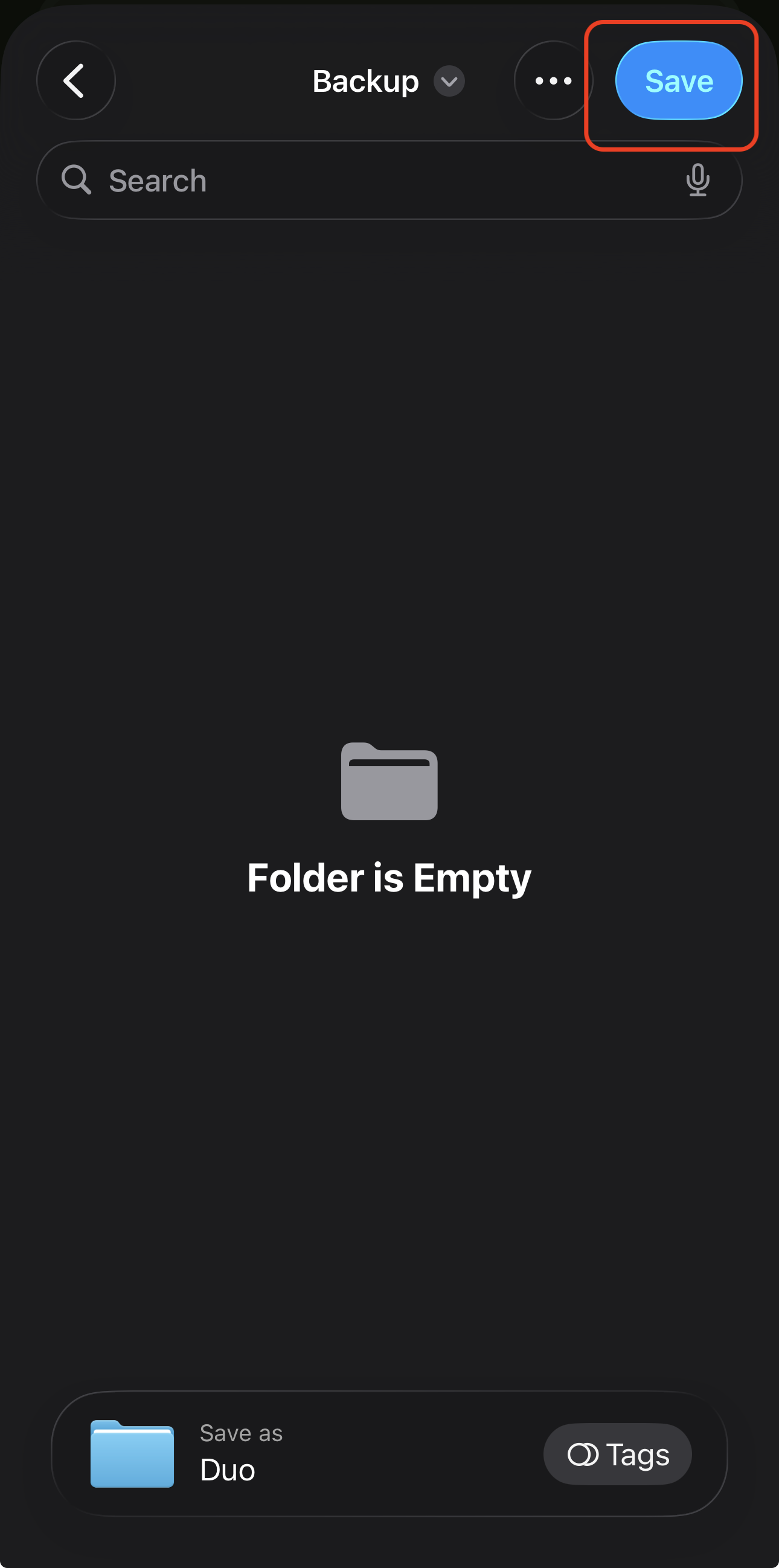
- We recommend saving to iCloud Drive for easy access from your Mac.
💡 Tip: Exporting as an Album(Folder) keeps all tracks in the folder structure, making it easier to restore on Mac.
On Other Device(macOS/iPhone/iPad)
- Make sure the same audio files exist on your Mac.
- Keeping the same folder structure as on iPhone is recommended.
-
Open the playback screen of the file you want to import into.
-
Click [More].
-
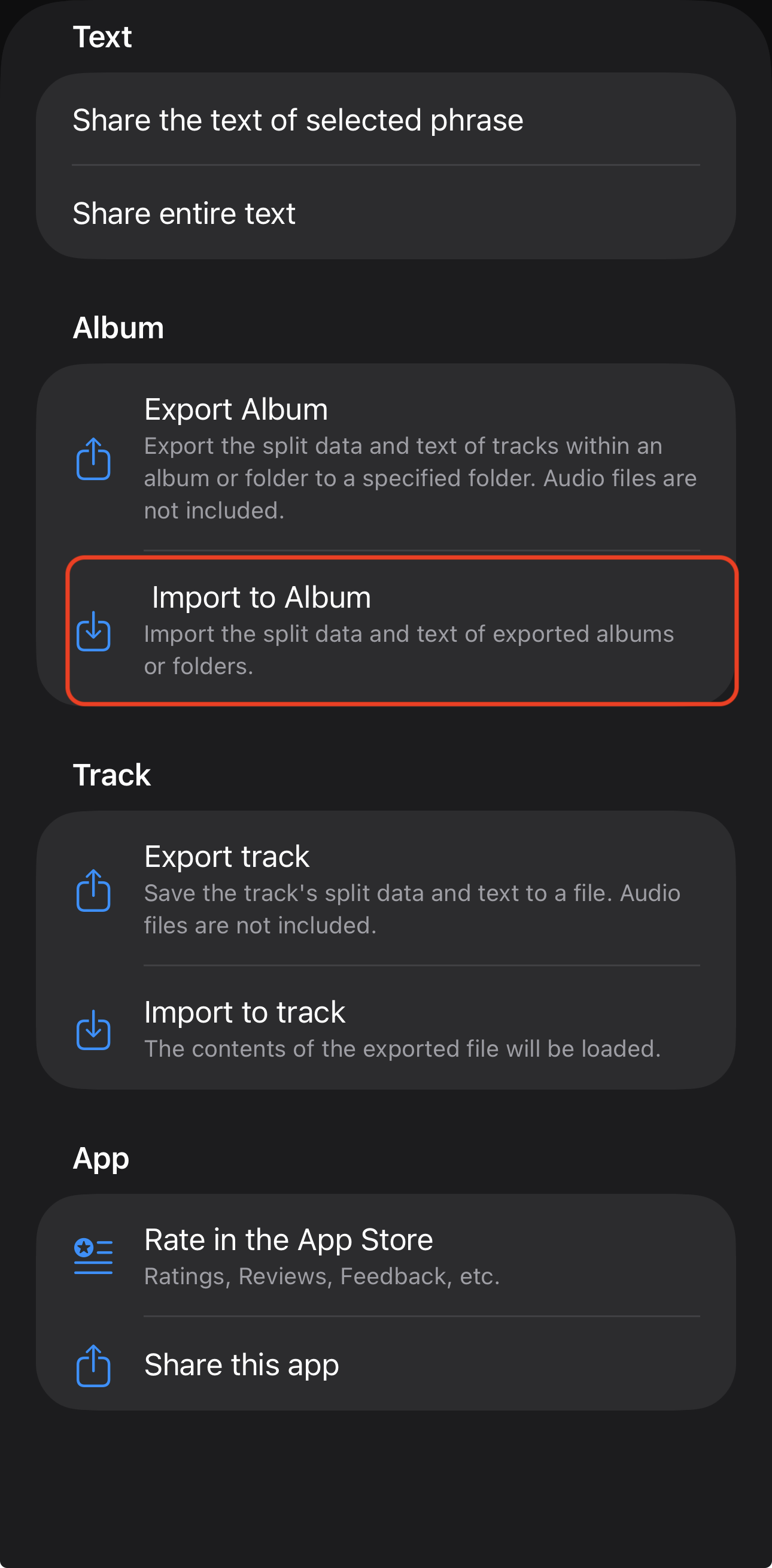
Select [Import to Album] (for a folder) or [Import to Track] (for a single file).
-
Choose the folder or file you exported to iCloud Drive.
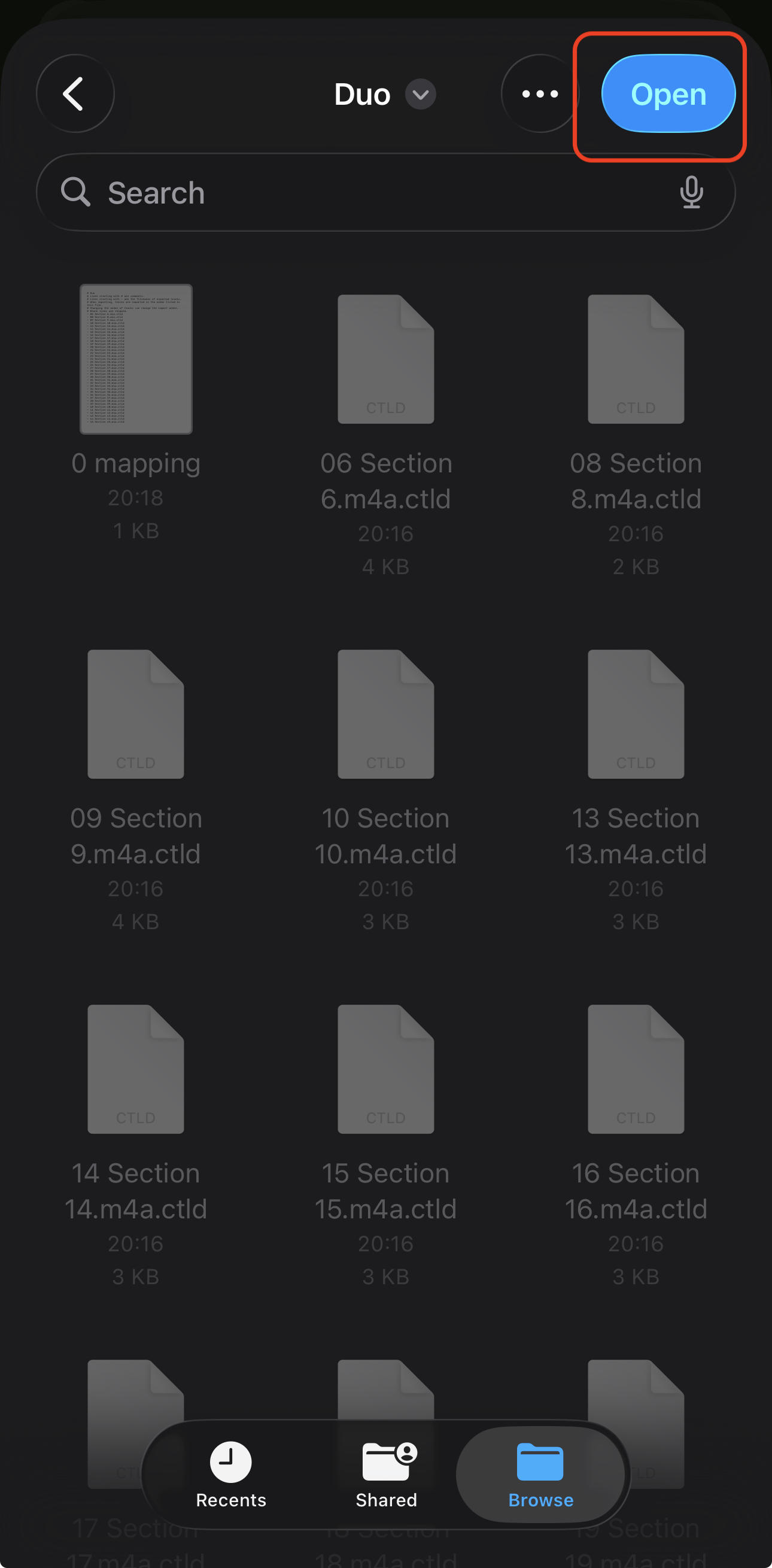
- The split data and generated text will be restored.
Notes
- Audio files are not included in exported data.
- Using iCloud Drive is recommended for smooth transfer between devices.
- Screenshots are from a development build and may differ slightly from the released version.
FAQ
Q: Can I automatically sync my files between iPhone and Mac?
A: Not automatically at this time. Please use the manual Export/Import process via iCloud Drive.
Q: Are playback logs or listening history transferred?
A: No, currently playback logs are not included in exported data.
Q: Can I use other cloud services (e.g., Dropbox, Google Drive)?
A: Yes, but iCloud Drive provides the most seamless integration between iPhone and Mac.